Ever spent twenty minutes formatting a document, then watched it fall apart the second you pasted it somewhere else?
Here is the secret most people miss: the problem was never you. It was the format.
Markdown fixes that. And in 2026 it quietly runs more of your digital life than you think — from GitHub and Reddit to Obsidian, Discord and every major AI chatbot.
I have written thousands of Markdown files over the past decade, and I help build the free tools at iLoveMarkdown that convert, preview and validate it. This is the complete guide I wish someone had handed me on day one — the full syntax, real examples you can copy, and the few gotchas that trip up almost everyone.
Key takeaways
- Markdown turns simple keyboard symbols into clean formatting, and the basics take about 20 minutes to learn.
- You only need around 10 elements to cover 95 percent of everyday writing. This guide gives you all of them with examples.
- Markdown has no built-in underline. That surprises everyone, so I show you the fix below.
- Markdown is now the default output of AI assistants, which makes it the most future-proof writing skill on this page.
- When you need a shareable file, you can convert Markdown to PDF in seconds — no install required.
- What is Markdown?
- Why Markdown still wins in 2026
- The complete Markdown syntax (with examples)
- Markdown flavors: CommonMark vs GitHub
- How to convert Markdown to PDF (and back)
- Markdown for AI: the 2026 superpower
- Common Markdown mistakes to avoid
- The Markdown tools I actually use
- Frequently asked questions
What is Markdown?
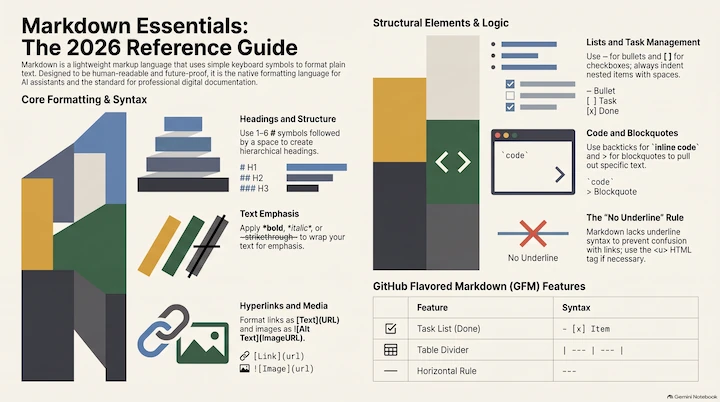
Markdown is a lightweight markup language that formats plain text using ordinary keyboard characters — a # for a heading, **asterisks** for bold, a - for a list. It stays readable as raw text and renders as clean HTML almost everywhere.
The first time I opened a .md file, I was confused. It looked like a normal text document with a few stray symbols. That is the whole point. Markdown was built to be read by a human first and a computer second.
It was created in 2004 by writer John Gruber, with technical input from Aaron Swartz. Two decades later it is everywhere, and the syntax has barely changed. That stability is exactly why learning it once pays off for years.
Why Markdown still wins in 2026
Markdown wins because it is plain text. Plain text is portable, future-proof, version-controllable, and now the native language of AI tools. No other format gives you clean formatting and that much freedom at the same time.
Think about the documents you wrote ten years ago. Can you still open them? A Markdown file is just text, so it will open in any editor on any device for the rest of your life. No subscription. No corrupted file. No "this was made in a newer version" warning.
It also plays perfectly with modern tools. Git tracks every change line by line. Static site generators publish it straight to the web. And AI assistants both read and write it by default.
Markdown is intended to be as easy-to-read and easy-to-write as is feasible. — John Gruber, creator of Markdown (2004)
That single design goal is why Markdown outlived nearly every "rich text" format that tried to replace it.
The complete Markdown syntax (with examples)
The core Markdown syntax covers headings, emphasis, lists, links, images, blockquotes, code, tables and a few extras. Below is every element with the exact syntax to type and what it produces. Copy any block and test it in a live Markdown preview.
Do not try to memorize all of this. Learn the first five, then bookmark the rest. Even after years, I still look up table and link syntax constantly. For a one-page printable version, keep the complete Markdown cheat sheet open in a second tab.
Headings
Create a heading by starting a line with one to six # characters, followed by a space. One # is the largest heading, six is the smallest.
# Heading 1
## Heading 2
### Heading 3
Always put a space after the last #. Writing #Heading with no space does not render as a heading. Use only one level-1 heading per document and never skip levels, because clean heading structure helps both readers and search engines.
Bold, italic, strikethrough and underline
Wrap text in one asterisk for italic, two for bold, three for bold italic, and two tildes for strikethrough. Markdown has no underline syntax — use the HTML tag <u> when you truly need it.
*italic* **bold** ***bold italic*** ~~strikethrough~~That renders as italic, bold, bold italic and strikethrough.
The underline question comes up constantly, so let me answer it directly. Underline is missing on purpose, because underlined text looks like a link and confuses readers. If you genuinely need it, write <u>underlined</u> and it renders as underlined anywhere inline HTML is allowed.
Lists (bulleted, numbered and nested)
For a bulleted list, start each line with -, * or +. For a numbered list, start each line with a number and a period. To nest a list, indent the child items with spaces until they line up under the parent text.
- First item
- Second item
  - Nested item

1. Step one
2. Step two
3. Step three
Those two blocks render as a real bulleted list and a numbered list:
- First item
- Second item
- Nested item
- Step one
- Step two
- Step three
One tip from painful experience — indent nested items with spaces, not tabs. Tabs behave inconsistently across renderers and often break the nesting entirely.
Task lists and checklists
A task list is a bulleted list where each item starts with [ ] for an open task or [x] for a done one. It renders as clickable checkboxes on GitHub and most modern editors.
- [x] Write the guide
- [ ] Publish the guide
- [ ] Share it
This is a GitHub Flavored Markdown feature, so a strict CommonMark renderer shows it as plain text. On GitHub, Obsidian and similar tools it becomes a real checklist you can tick off.
Links
Write the link text in square brackets, immediately followed by the URL in parentheses. Add an optional title in quotes for a tooltip.
[iLoveMarkdown](https://ilovemardown.com)
[with a tooltip](https://ilovemardown.com "Free Markdown tools")
To turn a bare URL into a clickable link everywhere, wrap it in angle brackets, like <https://ilovemardown.com>. Descriptive link text also matters for SEO and accessibility, so avoid "click here".
Images
An image is a link with an exclamation mark in front. The text in brackets becomes the alt text, which is shown when the image cannot load and read aloud by screen readers.
Markdown has no syntax for image size. The portable fix is an HTML tag: <img src="image.png" alt="description" width="400">. That works on GitHub and most renderers.
Blockquotes
Start a line with a > to quote it. Repeat the > on each line for a multi-line quote, and add more of them to nest quotes.
> Markdown is easy to read
> and easy to write.
Blockquotes can hold other Markdown inside them — headings, lists, even code. They are perfect for pulling out an important note or a customer quote.
Code (inline and blocks)
Wrap a short snippet in single backticks for inline code. For multiple lines, use a fenced code block: three backticks before and after, with an optional language name for syntax highlighting.
Run `npm install` first.

```python
def greet(name):
    return f"Hello, {name}!"
```
Inline code looks like this. Fenced blocks keep your indentation and, on most platforms, add color highlighting when you name the language after the opening fence.
Tables
Build a table with pipes between columns and a divider row of dashes under the header. The divider row is mandatory — without it, nothing renders as a table.
| Element | Symbol |
| ------- | ------ |
| Bold    | **     |
| Italic  | *      |
That produces a clean table:
| Element | Symbol |
|---|---|
| Bold | ** |
| Italic | * |
Align columns with colons in the divider row — :--- for left, :---: for center and ---: for right. For a line break inside a cell, use the <br> tag, because a real newline would end the row.
Horizontal rules and escaping
Three or more hyphens, asterisks or underscores on their own line create a horizontal divider. To show a symbol Markdown would otherwise interpret, put a backslash in front of it.
---

\*This is not italic\*
Keep a blank line before a --- divider. Placed directly under text, the dashes turn that text into a heading instead. That single rule causes more "why is my text huge?" moments than anything else.
Markdown flavors: CommonMark vs GitHub
A Markdown flavor is a specific dialect of the syntax. CommonMark is the strict, standardized core. GitHub Flavored Markdown (GFM) is a superset that adds tables, task lists, strikethrough and autolinks. Anything valid in CommonMark is also valid in GFM.
This is why your Markdown can look perfect on GitHub and slightly off in another app. The core elements in this guide work everywhere. The extras — tables, task lists, strikethrough, footnotes — come from GFM and a few other flavors like MultiMarkdown.
My rule of thumb: write in the core syntax whenever you can, and only reach for flavor-specific features when you know where the file will live. When in doubt, run it through a Markdown validator to catch anything non-standard before you publish.
How to convert Markdown to PDF (and back)
To convert Markdown to PDF, paste your text into a free online Markdown to PDF converter and download the file — no software and no command line. To go the other way, a PDF to Markdown tool extracts clean, editable text from any PDF that has a real text layer.
This is the question I get most often. Here is the honest version.
Many people search for "iLovePDF Markdown to PDF". iLovePDF is a genuinely great general PDF toolkit, but it does not handle Markdown. That gap is exactly why we built our free Markdown to PDF converter — it is online, free, needs no signup, and keeps your tables and code blocks intact.
If you want the full walkthrough, including how to handle page breaks and images, I wrote a step-by-step guide to converting Markdown to PDF. And when you need to recover editable text from a document, here is how to convert a PDF back to Markdown.
Markdown for AI: the 2026 superpower
AI assistants read and write Markdown natively, so using it makes your prompts cheaper and your results cleaner. Feeding a model clean Markdown instead of a raw PDF or HTML uses far fewer tokens for the same content.
If you have noticed that ChatGPT, Claude and Gemini answer in neat headings and bullet lists, that is Markdown at work. It has quietly become the shared language between humans and machines.
This is the part most guides still miss. Learning Markdown in 2026 is not just about pretty documents — it is about talking to AI efficiently. I broke down the full reasoning in why AI tools love Markdown, including how it saves you tokens.
Common Markdown mistakes to avoid
Most "my Markdown will not render" problems come from five small mistakes: no space after a #, a missing blank line before a list or table, accidental indentation, using tabs instead of spaces, and a missing divider row in tables.
I have made every one of these. Here they are so you can skip the frustration:
- No space after the hash.
#Headingis plain text.# Headingis a heading. - No blank line before a list or table. It merges into the paragraph above and renders as one run-on line.
- Accidental code blocks. Indenting a paragraph by four or more spaces turns it into code.
- Tabs instead of spaces. Tabs break nested lists. Use two or three spaces to indent.
- Missing table divider. Without the
| --- | --- |row, your pipes show up as literal text.
The fastest way to catch all five is to paste your document into a live Markdown preview and watch it render as you type.
The Markdown tools I actually use
The three tools I reach for daily are a live preview to see rendering instantly, a validator to catch syntax errors, and a converter to turn finished Markdown into a PDF. All three should run in your browser and keep your files private.
You do not need a paid app to write great Markdown. This is my everyday stack, and all of it is free:
- Live Markdown preview — paste your text and see exactly how it renders, side by side.
- Markdown validator — checks your document against 50+ markdownlint rules and fixes most issues in one click.
- Markdown to PDF converter — turns your
.mdfile into a polished, shareable PDF. - The Markdown cheat sheet — every element on one page for quick reference.
Frequently asked questions
Is Markdown hard to learn?
No. Markdown is designed to be readable as plain text, so most people learn the core syntax — headings, bold, italic, lists and links — in about 20 minutes. You only need around ten elements to handle almost all everyday writing.
Does Markdown support underline?
No. Standard Markdown has no underline syntax, because underlined text is easily mistaken for a link. The portable fix is the HTML tag: wrap your text in <u> and </u>, which works anywhere inline HTML is allowed.
What is the difference between CommonMark and GitHub Flavored Markdown?
CommonMark is the strict, unambiguous specification of core Markdown. GitHub Flavored Markdown adds tables, task lists, strikethrough and autolinks on top. Anything valid in CommonMark is also valid in GFM.
How do I convert a Markdown file to PDF?
The fastest way is a free online Markdown to PDF converter: paste your Markdown or drop your .md file, then download the PDF. You do not need Pandoc, LaTeX or any install.
Can I use tabs to indent in Markdown?
Use spaces, not tabs. Markdown treats four spaces of indentation as a code block, and tabs behave inconsistently between renderers. For nested lists, indent with two or three spaces so the child lines up under its parent.
Put your Markdown to work
You know the syntax — now turn it into a polished PDF. Free, private and instant, with no signup and no watermark.
Convert Markdown to PDF →Markdown is not a passing trend. It is the quiet foundation under GitHub, your notes app and the AI tools you use every day. Learn it once and it keeps paying you back — cleaner writing, portable files, and faster conversations with machines. The only thing left is to use it.
So, what is the first thing you are going to write in Markdown today?
Keep reading: grab the one-page Markdown cheat sheet, learn how to convert Markdown to PDF, or see why AI tools love Markdown.